> For the complete documentation index, see [llms.txt](https://help.transmutr.com/llms.txt). Markdown versions of documentation pages are available by appending `.md` to page URLs; this page is available as [Markdown](https://help.transmutr.com/v2-zh-cn/bian-ji/interface.md).

# 界面

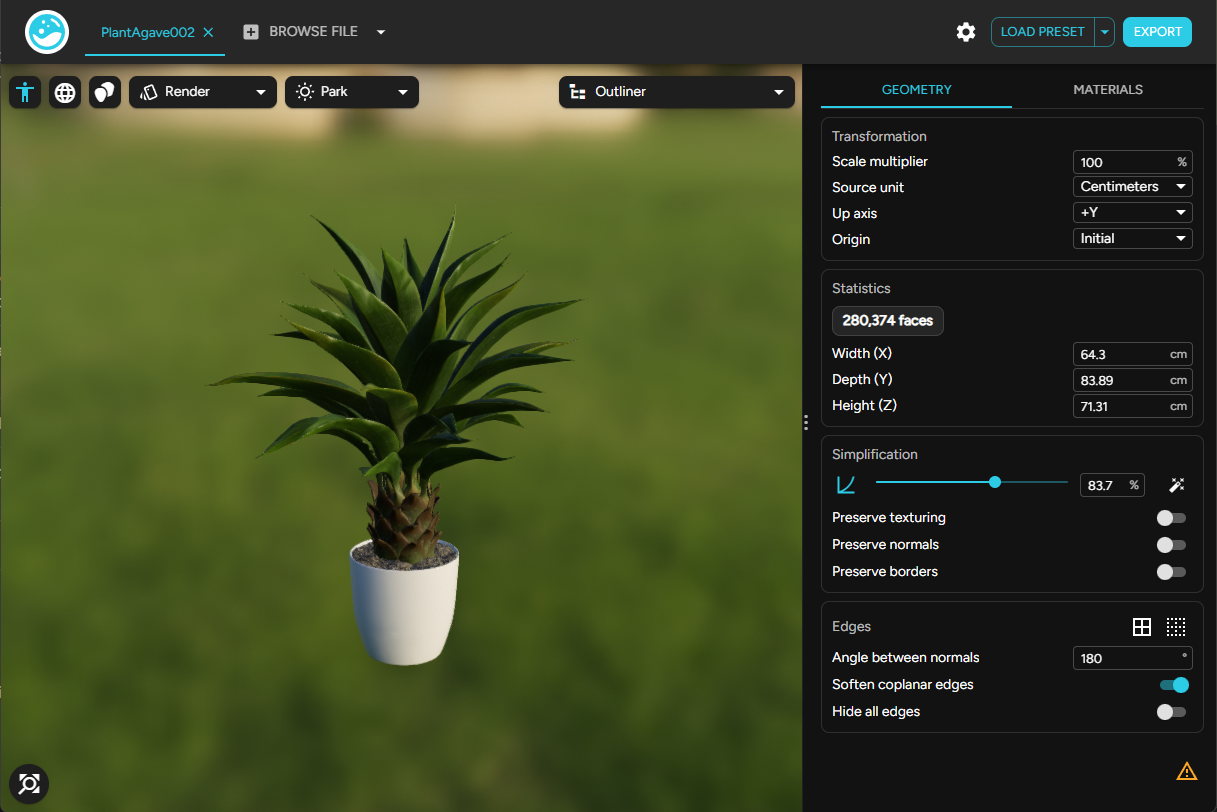
模型载入后，Transmutr 在左侧显示实时预览，在右侧显示设置。

<figure><img src="https://2686882007-files.gitbook.io/~/files/v0/b/gitbook-x-prod.appspot.com/o/spaces%2FCrmldPtSroWcqXbne9bu%2Fuploads%2Fgit-blob-b2d5970f11e548524f70a50c085366f04174a817%2FScreenshot%202026-08-13%20165410.png?alt=media" alt=""><figcaption></figcaption></figure>

## 工具栏

<table><thead><tr><th width="240">控件</th><th>用途</th></tr></thead><tbody><tr><td><strong>模型标签页</strong></td><td>在已打开的模型之间切换（<a href="/v2-zh-cn/bian-ji/batch-conversion.md">仅 Studio / Creator</a>）。单击“<strong>浏览文件</strong>”打开另一个模型。</td></tr><tr><td><strong>选项</strong></td><td>许可证、界面偏好、外部工具、SketchUp 连接。请参阅<a href="/v2-zh-cn/sketchup-yu-she-zhi/options.md">选项</a></td></tr><tr><td><strong>载入预设</strong> / <strong>保存预设</strong></td><td>重复使用几何体、材质和自动化设置。请参阅<a href="/v2-zh-cn/bian-ji/presets.md">预设</a></td></tr><tr><td><strong>重置修改器</strong></td><td>将几何体/材质的覆盖设置清除回默认值（以界面中提供的项为准）。</td></tr><tr><td><strong>导出</strong></td><td>打开导出设置并保存 <code>.skp</code>。请参阅<a href="/v2-zh-cn/dao-chu/export.md">导出</a></td></tr></tbody></table>

## 视口

[3D 视图](/v2-zh-cn/bian-ji/viewport.md)以类似 SketchUp 的导航方式显示模型，并提供飞行控制。预览模式、线框、比例参照人物和[大纲](/v2-zh-cn/bian-ji/outliner.md)都在这里。

## 侧边栏

两个标签页：

* [**几何体**](/v2-zh-cn/bian-ji/geometry.md)：变换、统计信息、简化、边线
* [**材质**](/v2-zh-cn/bian-ji/materials.md)：PBR 材质、贴图、自动化（Studio / Creator）、指定工具

[仅材质](/v2-zh-cn/dao-ru/materials-only.md)导入会隐藏几何体标签页和大纲。

## 共享设置（Studio / Creator）

打开多个模型时，大多数几何体设置会应用于**所有**标签页。使用设置旁的共享 / 单独设置控件，可只自定义一个模型。请参阅[批量转换](/v2-zh-cn/bian-ji/batch-conversion.md)